
What's New in CamoCopy
Stay ahead of the curve. Discover the latest features, improvements, and fixes that help you get the most out of CamoCopy.
We’ve just launched a massive Search Update! You can now set CamoCopy as your default OpenSearch compatible search engine, use '!ai' to instantly trigger AI searches, navigate the web faster with QuickSearch shortcuts, and customize chat font sizes.
The Search Engine Update: OpenSearch, QuickSearch & More
We've vastly improved our search capabilities, making CamoCopy a true alternative for your daily web searches. Set it as your default engine, trigger AI instantly, and customize your reading experience.
- OpenSearch Compatible: CamoCopy can now be set as your browser's default search engine! Just use the URL structure
camocopy.com/search?q=searchquery. - AI-Powered Search Bar: You can now immediately start an AI-powered search straight from the search bar by simply typing
!aifollowed by your query. - QuickSearch: Search other websites really quickly without waiting. For example, typing
!w Europewill directly open the Wikipedia page for Europe. Find all supported shortcuts and information by visiting the search page on your dashboard. - Custom Font Sizes: You can now set the font size bigger or smaller directly within your chats for a better reading experience.
- Bug Fixes: We also fixed some minor issues to keep your experience smooth and reliable.
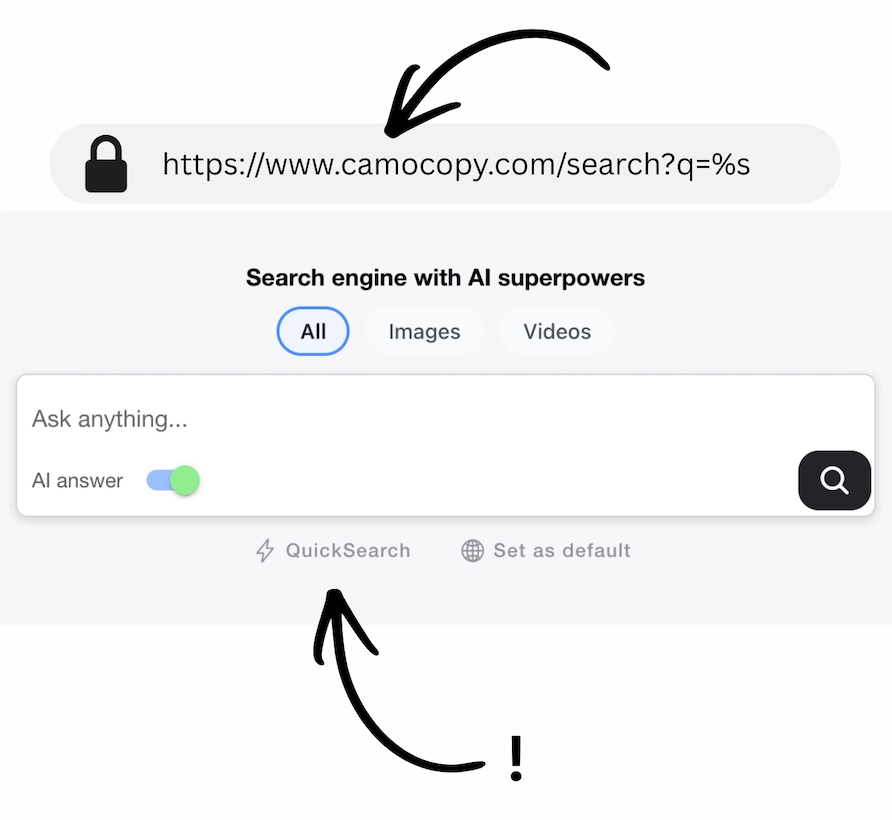
QuickSearch has been added! You can also easily set CamoCopy as your default search engine to level up your workflow.
New Year, new features
This major release transforms CamoCopy from a chat interface into a professional document creation suite. We have introduced powerful tools to edit, branch, reuse, and export your content, giving you full control over your AI workflow.
- Edit, Save & Export: AI isn't always perfect, and answers sometimes need a bit of polish. Edit AI responses directly (e.g. fixing names or removing emojis) and choose to save changes locally (offline) or sync them online. Once polished, export the text as a formatted PDF or Word document with your custom logo header. Editing AI answers can also help AI generate a better follow up answer, as it learns from the previous correction and answer style.
- Reference Documents: Never waste a good response. Save high-quality AI outputs as 'Reference Documents'. You can import these into new chats to serve as templates, style guides, or context, ensuring consistency across your projects without re-explaining everything. To reference a document in a new chat, click the 'Use reference document' button in the chat input.
- Chat Branching: Experiment without fear. Click the 'Branch' button to create an identical copy of your current chat. This allows you to explore a different direction or try a new prompt strategy while keeping your original conversation safe and untouched.
- Smart Memory: Build a knowledge after a conversation with the AI. You can now save specific details or summaries from a conversation into the AI's memory. This allows the assistant to recall project details or preferences in future interactions.Of course, always only if you really want that, so you need to actively click to save a memory. You also need to actively click on Using Memory (found in the chat input) to use memory in other chats.
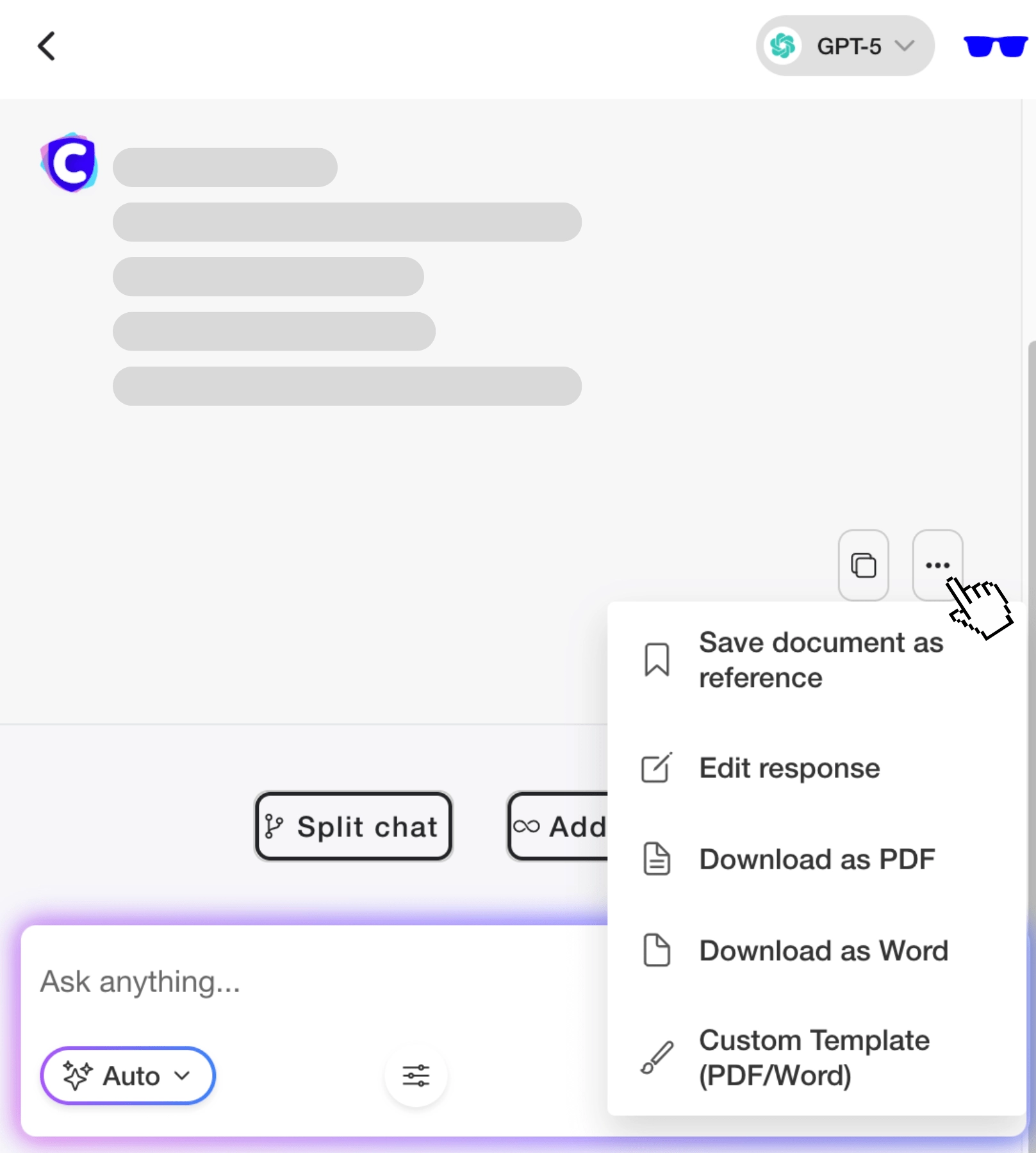
Save great answers as Reference Docs and inject them into future chats as context. Edit the AI response to perfection, then export it instantly as a branded PDF or Word file.
To help you keep track of new feature releases, we are launching What's New in CamoCopy. (January 9, 2026)